 PlugPress
Connect Cursor to WordPress
Cursor’s AI can work on your WordPress site directly when you connect it through the Saddle plugin — reading content, writing posts, and editing pages from the editor’s chat. The setup is one MCP server config that Saddle generates for you.
What do I need before connecting?
- A WordPress site with the Saddle plugin installed and activated.
- The Cursor editor installed.
How do I connect Cursor to my WordPress site?
Step 1: Open the connect wizard in Saddle
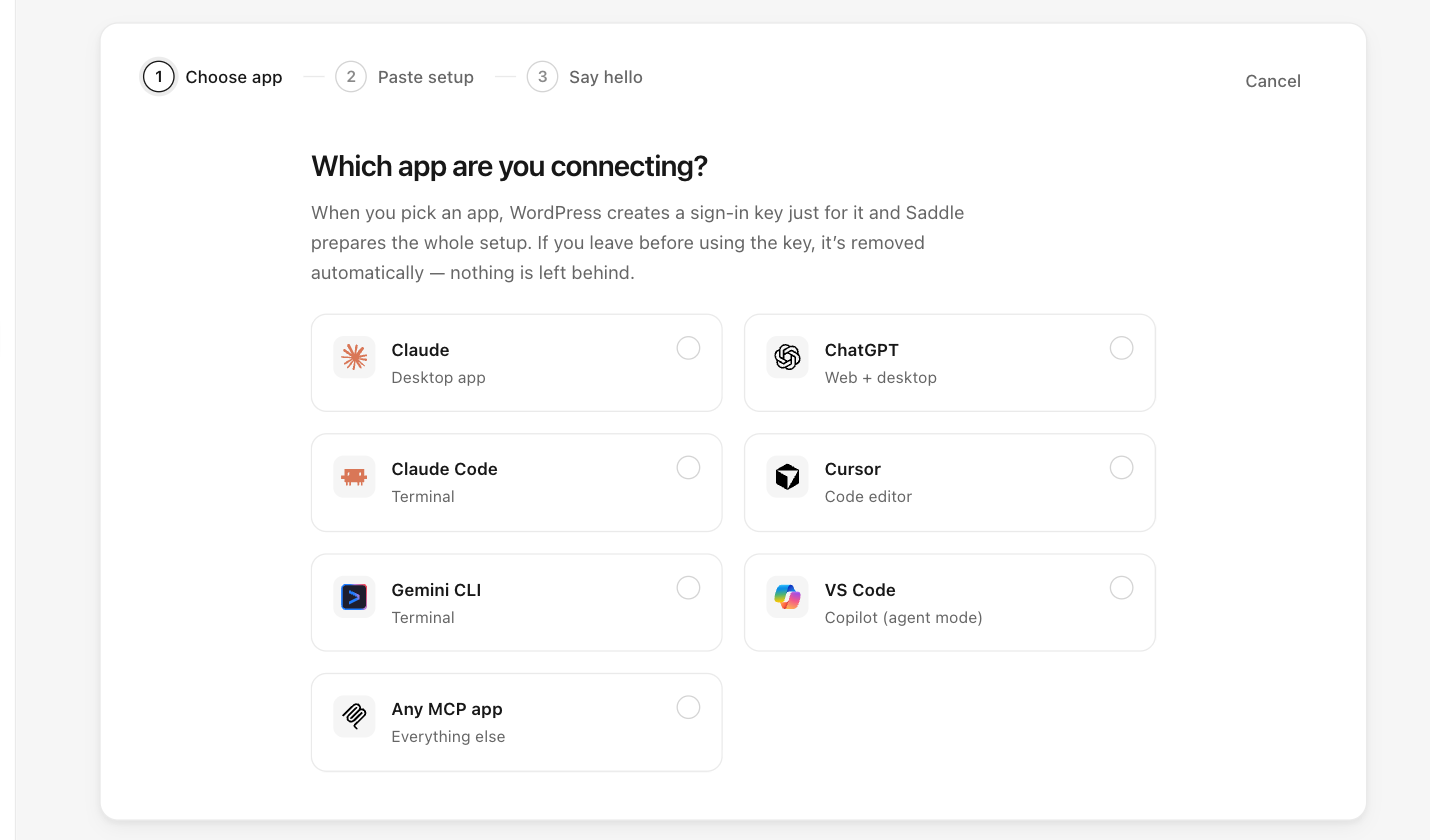
In your WordPress dashboard, go to Saddle → Connections, click Connect an app, and choose Cursor.
Step 2: Copy the generated config
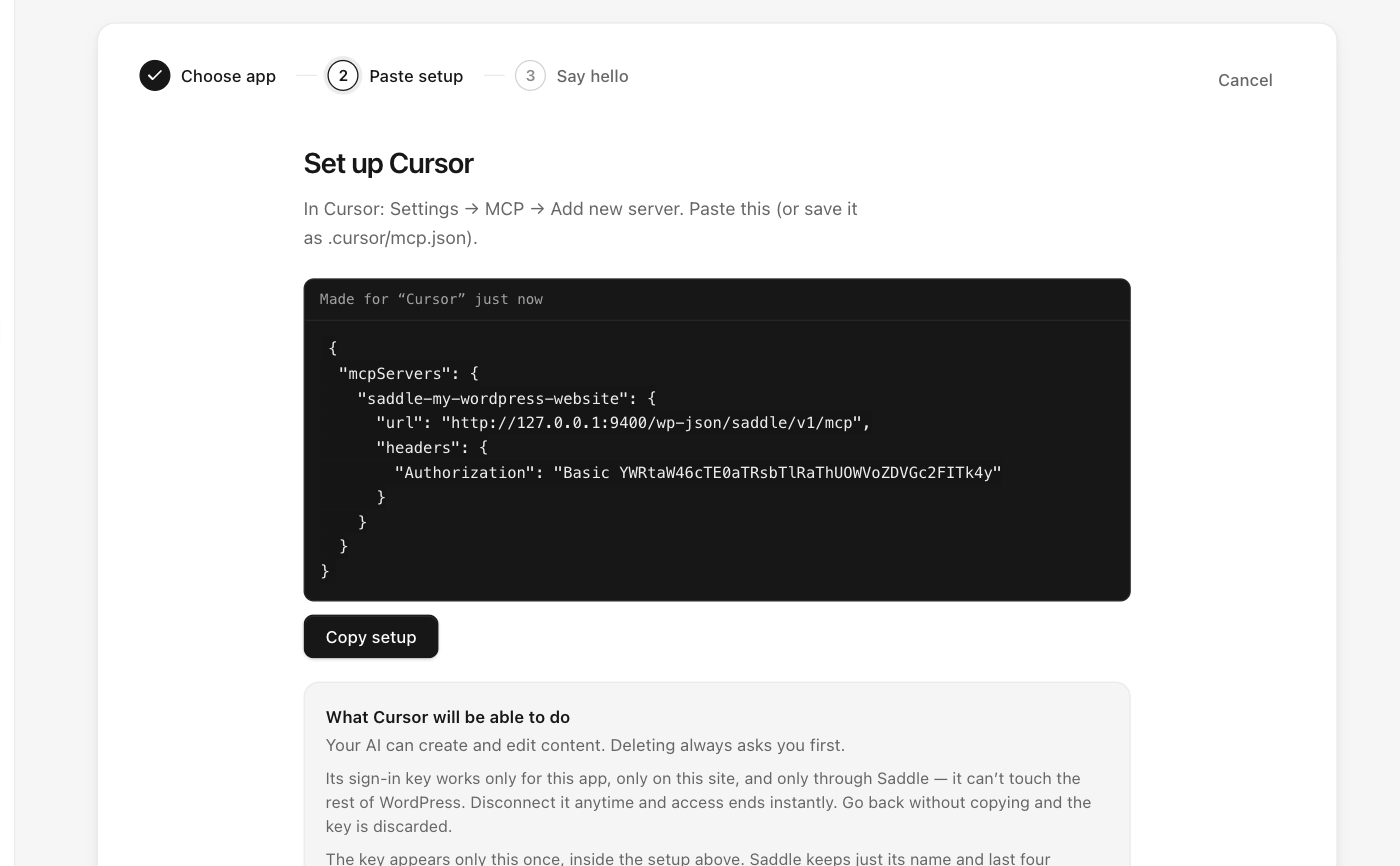
It looks like this (yours contains your real site address and key):
{
  "mcpServers": {
    "saddle-your-site": {
      "url": "https://your-site.com/wp-json/saddle/v1/mcp",
      "headers": {
        "Authorization": "Basic PASTE-YOUR-KEY-HERE"
      }
    }
  }
}
Step 3: Add it to Cursor
In Cursor, open Settings → MCP → Add new server and paste the config — or save it as .cursor/mcp.json in your project to share the connection with that workspace.
How do I know the connection works?
Open Cursor’s chat and ask:
What can you see on my WordPress site?Cursor should report your site name, WordPress version, and content counts, and the app shows as connected in Saddle → Connections.
What can Cursor do on my WordPress site?
Only what you allow on the Permissions screen — sites start read-only, and deletions always require a preview-and-confirm approval.
Something not working?
See Troubleshooting and FAQ — a stripped Authorization header is the most common cause of a rejected connection.