 PlugPress
Connect Claude to WordPress
With the Saddle plugin, the Claude desktop app can read and manage your WordPress content in plain conversation — draft posts, edit pages, organize media. The setup is one config block that Saddle generates for you, pasted into Claude’s settings.
What do I need before connecting?
- A WordPress site with the Saddle plugin installed and activated.
- The Claude desktop app installed.
- Node.js installed — Claude’s config uses it to reach your site.
How do I connect Claude to my WordPress site?
Step 1: Open the connect wizard in Saddle
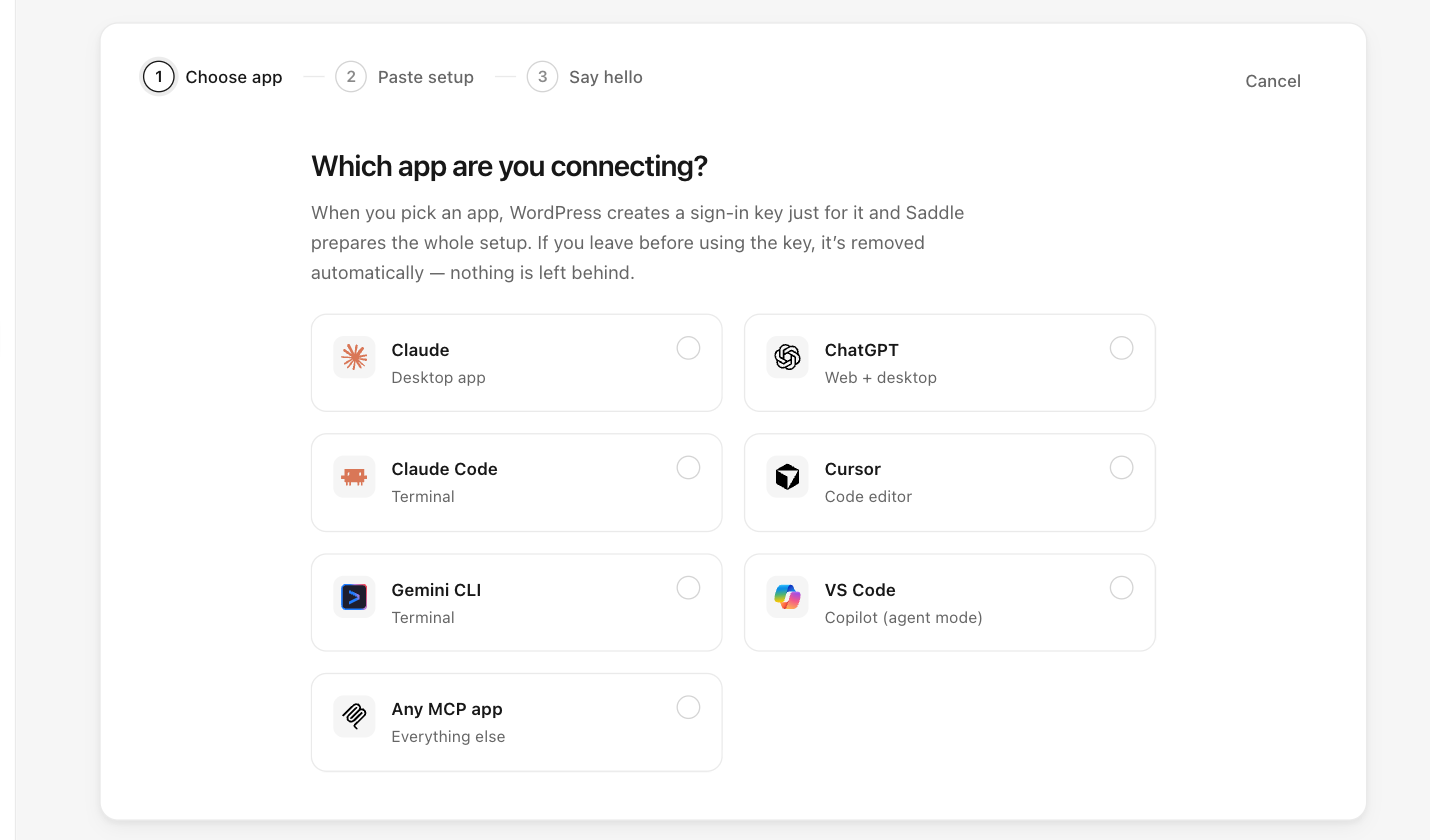
In your WordPress dashboard, go to Saddle → Connections, click Connect an app, and choose Claude.
Step 2: Copy the generated config
Saddle creates a sign-in key for this app and builds the full config — site address and key already filled in. Click Copy setup.
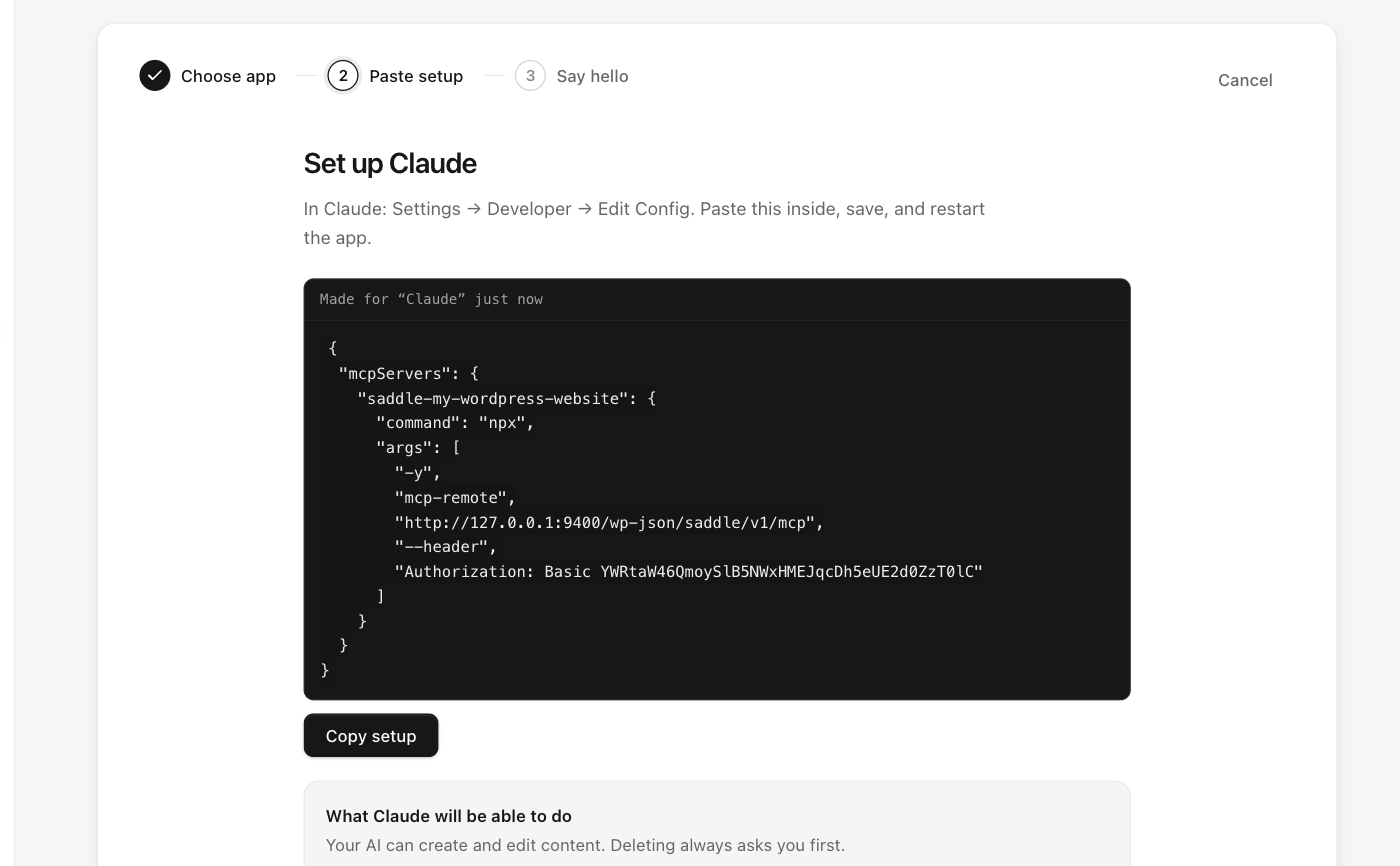
It looks like this (yours contains your real site address and key):
{
  "mcpServers": {
    "saddle-your-site": {
      "command": "npx",
      "args": [
        "-y",
        "mcp-remote",
        "https://your-site.com/wp-json/saddle/v1/mcp",
        "--header",
        "Authorization: Basic PASTE-YOUR-KEY-HERE"
      ]
    }
  }
}
Step 3: Paste it into Claude’s config
- In Claude, open Settings → Developer → Edit Config.
- Paste the config inside, save the file.
- Restart the Claude app.
How do I know the connection works?
After restarting, ask Claude:
What can you see on my WordPress site?Claude should report your site name, WordPress version, and content counts. The connection also shows up in Saddle → Connections.
What can Claude do on my WordPress site?
Only what you allow. Sites start at the Just reading level; raise it on the Permissions screen when you’re ready. Deletions always go through a preview-and-confirm approval first.
Something not working?
If Claude doesn’t list your site’s tools after a restart, check that Node.js is installed and see Troubleshooting and FAQ for the most common connection fixes.