 PlugPress
Connect Claude Code to WordPress
Claude Code is Anthropic’s AI coding agent that runs in your terminal — and with the Saddle plugin it can manage your WordPress site directly: writing posts, editing pages, designing layouts with real editor blocks, and organizing media. Connecting Claude Code to WordPress takes one terminal command, and Saddle generates it for you.
What do I need before connecting?
- A WordPress site with the Saddle plugin installed and activated.
- Claude Code installed on your computer.
- An administrator account on your WordPress site.
How do I connect Claude Code to my WordPress site?
Step 1: Open the connect wizard in Saddle
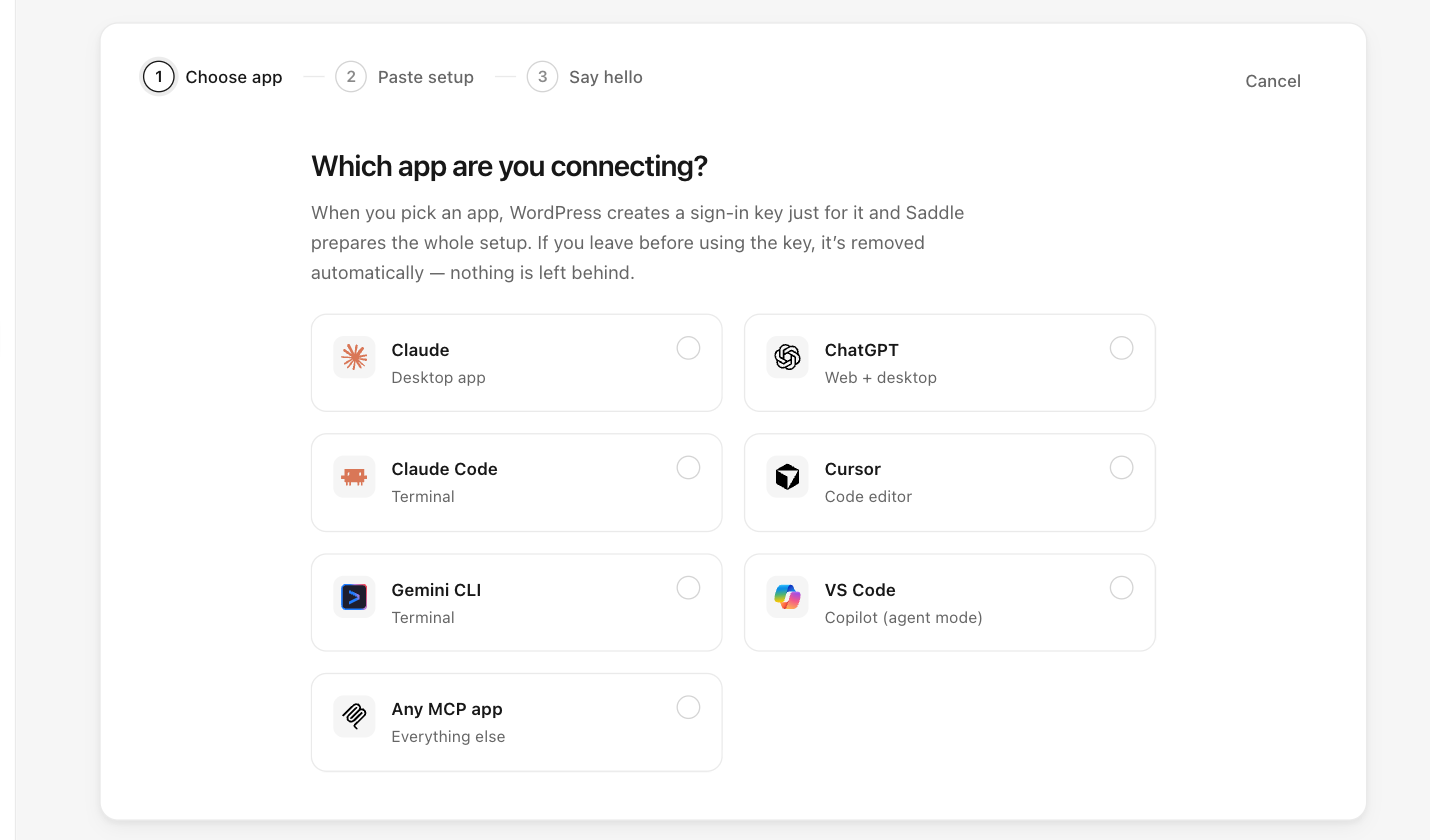
In your WordPress dashboard, go to Saddle → Connections, click Connect an app, and choose Claude Code.
Step 2: Copy the setup command
Saddle creates a sign-in key just for this app and builds the full command — your site address and key are already filled in. Click Copy setup.
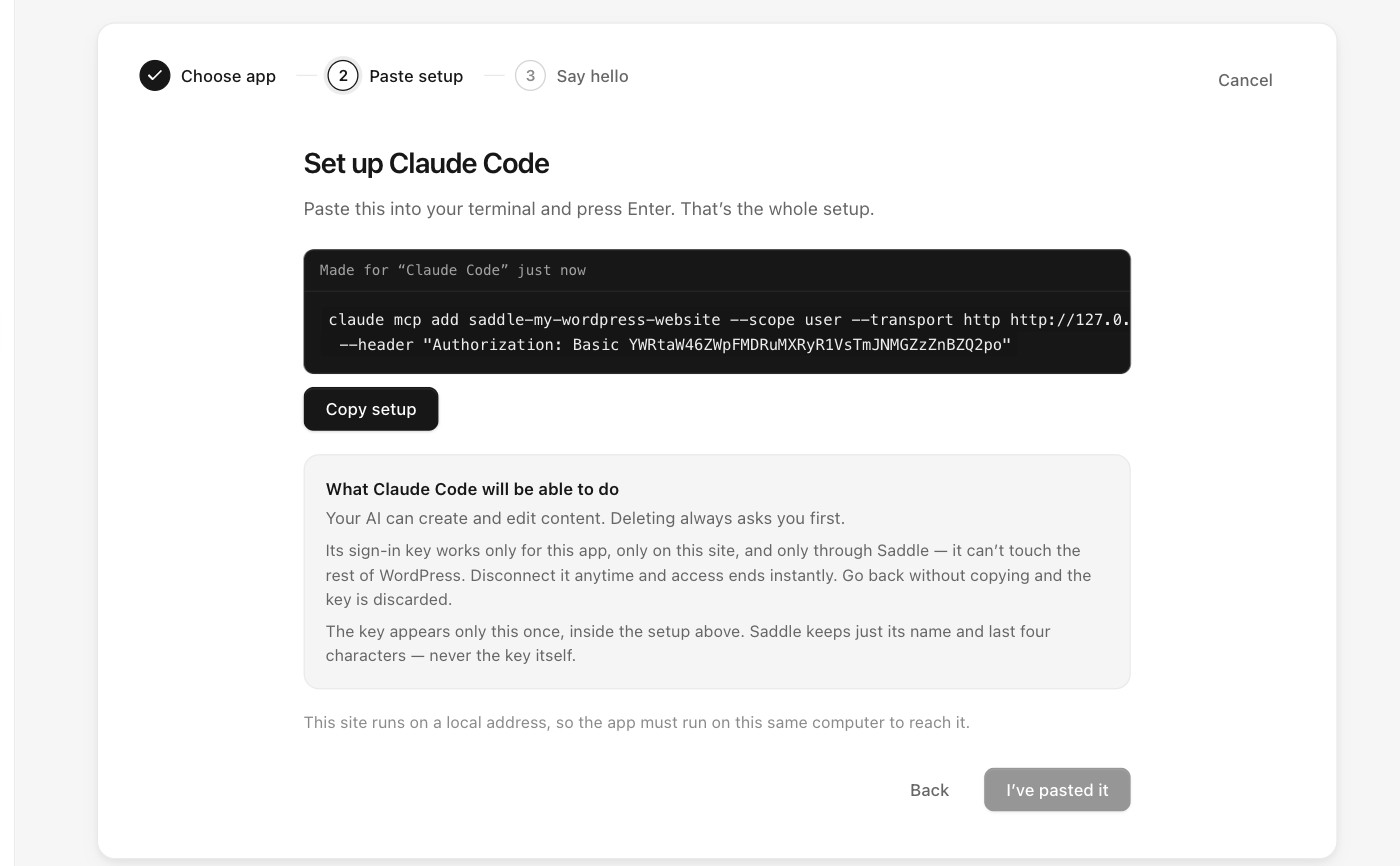
The command looks like this (yours contains your real site address and key):
claude mcp add saddle-your-site --scope user --transport http https://your-site.com/wp-json/saddle/v1/mcp
  --header "Authorization: Basic PASTE-YOUR-KEY-HERE"
The key appears only this once — Saddle keeps just its name and last four characters, never the key itself.
Step 3: Paste it into your terminal
Open a terminal, paste the command, and press Enter. That’s the whole setup — the connection is saved to your user profile, so it works from any folder on your computer.
How do I know the connection works?
Run claude in any folder and ask:
What can you see on my WordPress site?Claude Code should call Saddle’s site-info tool and report your site name, WordPress version, and content counts. The Connections screen in Saddle also shows the app as connected the moment its first call arrives.
What can Claude Code do on my WordPress site?
That’s up to you. Saddle starts every site at the Just reading level — Claude Code can look at content but change nothing until you raise the level on the Permissions screen. And every deletion goes through a preview-and-confirm approval first, no matter the level.
Something not working?
The two most common issues are a stripped Authorization header and a mistyped key — both have quick fixes in Troubleshooting and FAQ. You can also revoke this connection any time from Saddle → Connections without affecting other apps.