 PlugPress
Getting Started with Waggle
Waggle starts working the moment you activate it. There is no setup wizard and nothing
you have to configure. Meta tags, the sitemap, schema, llms.txt, Markdown pages, AI bot
tracking and the site audit all run straight away, with no API key.
The next ten minutes are about direction: finding out which of the 100 readiness points
you are missing, and which two settings can cancel everything else.
What works with no setup?
All of this is live as soon as the plugin is active. None of it calls an AI provider, and
none of it costs you anything per use.
- Search engine tags — SEO titles and descriptions, Open Graph, X/Twitter cards,
canonical URLs, per-post robots meta - XML sitemap at
/sitemap.xml, covering every public post type - JSON-LD schema —
Articleon posts,WebSiteon the homepage, FAQPage from
question-style headings - LLMs.txt & Markdown —
/llms.txt,/llms-full.txt, and a Markdown copy of every page - AI bot tracking — visits from GPTBot, ClaudeBot, PerplexityBot and 16 other crawlers,
kept for 90 days - Redirects and the 404 log
- Scores — the per-page answer score and the site readiness audit
One point surprises people: the site audit never calls an AI provider. It is a fixed
set of checks, so it is safe to run with no API key at all.
Two settings that block everything else
Rule these out before you tune anything. Both are common, and both are silent.
Is WordPress hiding your site from search engines?
WordPress has one checkbox that turns off indexing for your whole site:
Settings → Reading → "Discourage search engines from indexing this site". When it is
on, WordPress adds noindex, nofollow to every page, telling search engines to keep
the whole site out of their results. Waggle cannot override it.
It is usually on by accident. WordPress offers it during install, and most staging and
"coming soon" tools switch it on, so it often survives a launch.
Check it in one command:
curl -s https://example.com/ | grep -i "name=['"]robots"
An affected site returns <meta name='robots' content='noindex, nofollow' />. Waggle also
shows a warning banner on every screen. See
site not showing on Google or in AI answers.
Do you have an AI provider connected?
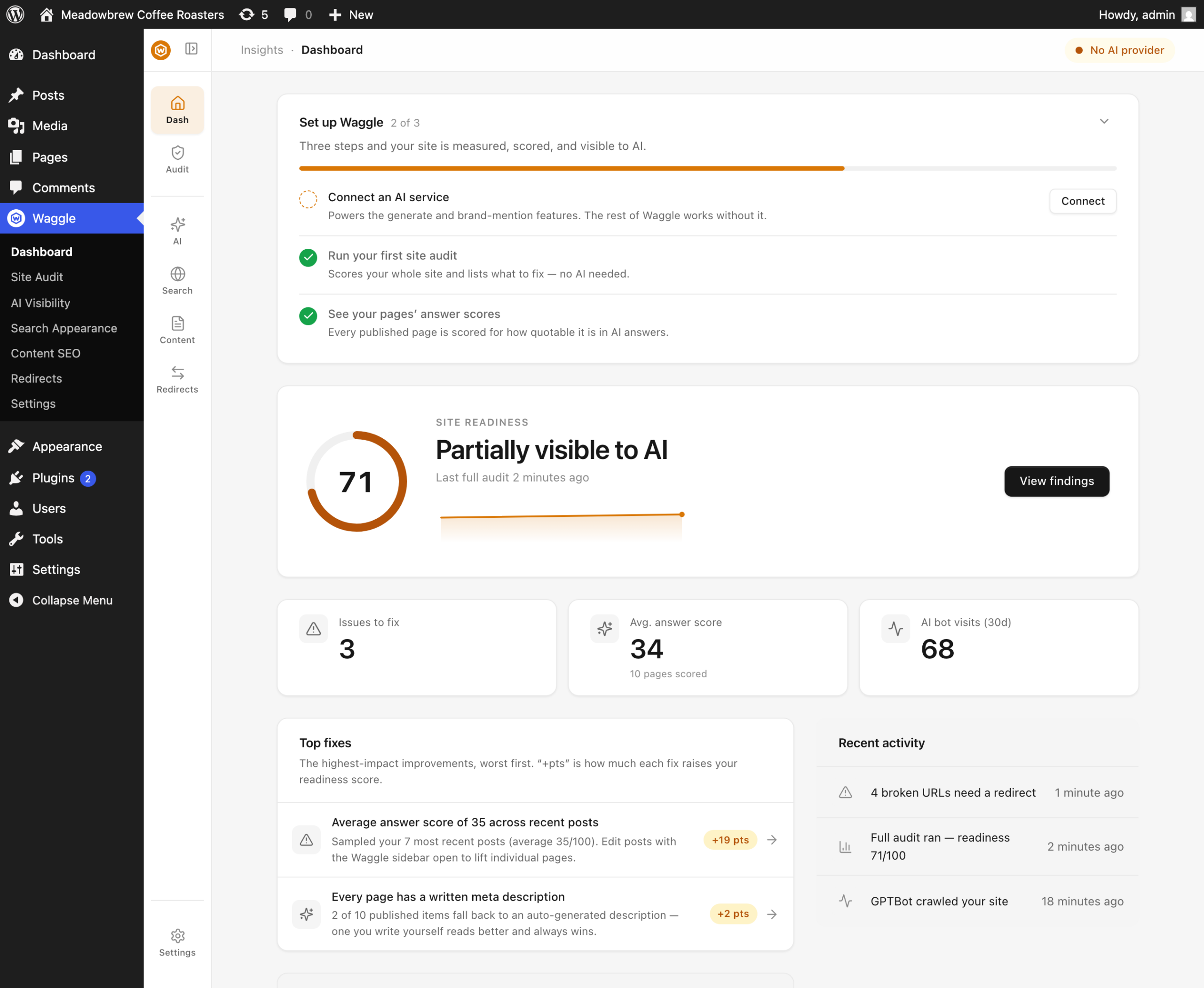
Look at the pill in the top right of any Waggle screen. It reads AI ready,
No AI provider, or AI unavailable (which means you are below WordPress 7.0).
Most of Waggle does not need one. Only the generate features do. See
connecting an AI provider.
Your first ten minutes
- Run the audit. Open Waggle → Dashboard and press Run audit. You get a score out
of 100 and a ranked list of fixes, each worth a stated number of points. See
the readiness score. - Work the Top fixes list. Every fix shows a preview first. Nothing is written until
you approve it. See running the site audit. - Import from your old SEO plugin, if you have one. Settings → Import handles
Yoast, Rank Math, All in One SEO and Slim SEO. See
switching to Waggle. - Fill in Search Appearance → Homepage. Your front page title and description are the
two fields most likely to be wrong out of the box. - Set Search Appearance → Social defaults so shared links get a fallback image.
- Paste your verification tokens under Search Appearance → Verification — Google
Search Console, Bing, Yandex, Pinterest and Baidu. - Check AI Visibility → Crawler access. Every AI crawler is allowed by default.
Blocking one stops that engine reading you, and citing you. - Check AI Visibility → LLMs.txt & Markdown to confirm Markdown is on for the post
types you care about. See llms.txt and Markdown pages.
Where is Waggle in wp-admin?
One Waggle menu, six sections under two group headings — Insights and Optimize — with
Settings at the bottom:
| Section | What it does |
|---|---|
| Dashboard | Your score, top fixes, recent activity |
| Site Audit | The full readiness audit and its fixes |
| AI Visibility | Answer readiness, Bot traffic, Crawler access, LLMs.txt & Markdown, AI agents, AI provider |
| Search Appearance | Homepage, Social, Content types, Archives, Verification |
| Content SEO | Post SEO and Image SEO — bulk SEO generation for posts and images |
| Redirects | Redirect rules and the 404 log |
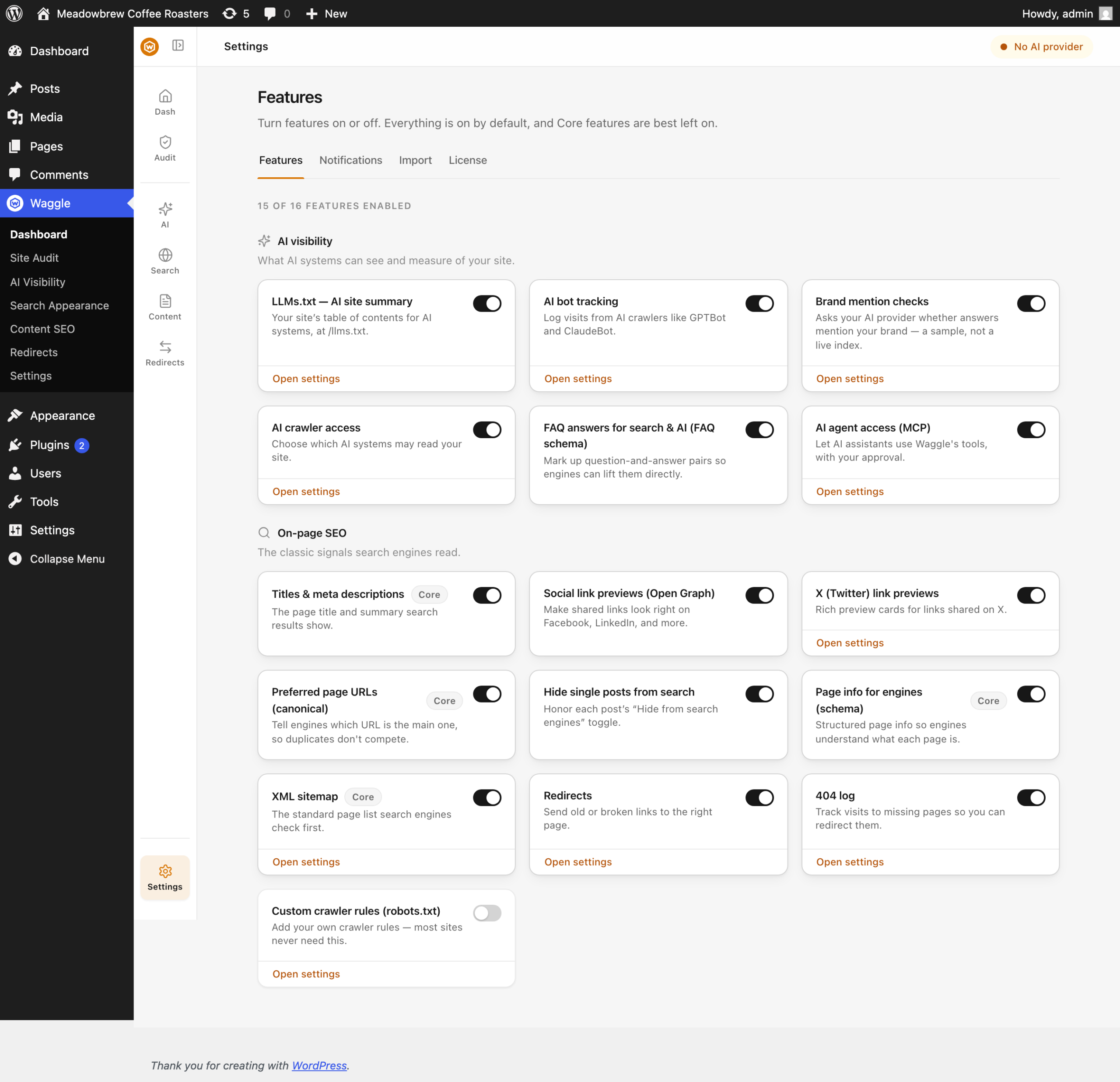
| Settings | Features, Notifications, Import, License |
There is also a Waggle panel in the block editor, plus SEO and Markdown columns
in the posts list. See the Waggle panel in the editor.
Do I need a license?
No. The license unlocks updates and support only. It never gates features. If it
expires you stop getting automatic updates, and everything keeps working. Activate yours
under Settings → License.
FAQ
Does Waggle replace Yoast or Rank Math?
It can, and it does the same job: titles, descriptions, Open Graph, canonicals, robots
meta, sitemap and schema, plus the AI visibility layer.
You do not have to choose. Running Waggle beside Yoast, Rank Math, All in One SEO or
SEOPress is supported and needs no setup. Waggle writes the tags on pages where you gave it
a title or description, and leaves the other plugin alone everywhere else.
Do I need an API key?
No. Everything under "What works with no setup" runs without one. You only need an AI
provider for generating text, brand mention checks and prompt research.
Which WordPress version do I need?
WordPress 7.0 or later, and PHP 7.4 or later. Waggle's AI features and agent abilities are
built on the AI Client and Abilities API that ship in WordPress 7.0.