 PlugPress
Getting Started
Connecting an AI assistant to your WordPress site takes about five minutes. Install the plugin, answer two questions, and paste one generated snippet into your AI app. Saddle writes the snippet for you — you never have to assemble a URL or a key by hand.
How do I install Saddle?
- In your WordPress dashboard, go to Plugins → Add New, search for Saddle, or upload the plugin ZIP.
- Click Install, then Activate.
- A Saddle item appears in your dashboard menu.
Your site should be on HTTPS. WordPress disables the sign-in keys Saddle uses on plain HTTP, so connections won’t work without it.
What happens the first time I open Saddle?
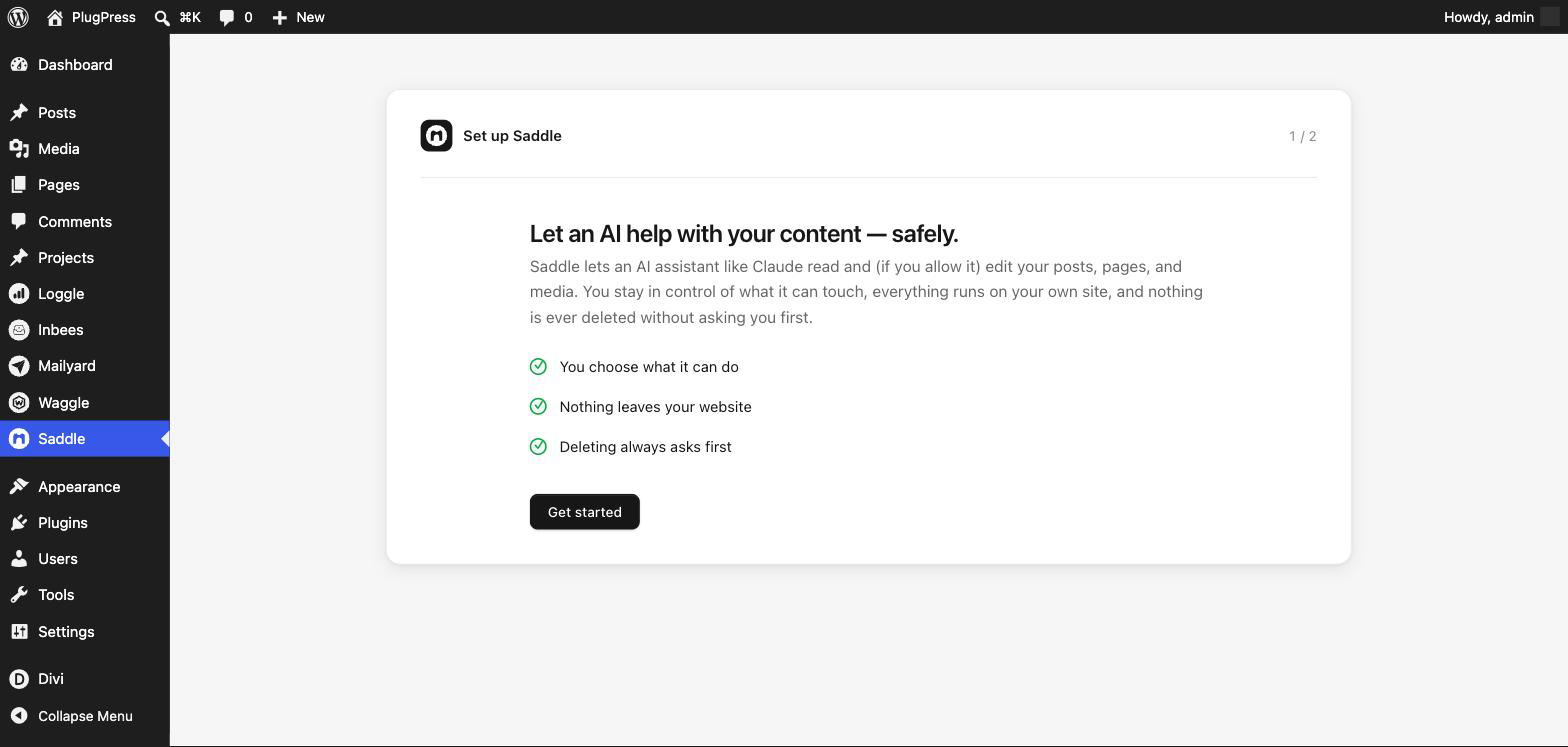
A short two-step setup runs before anything else. You can’t miss it — it replaces the whole screen until it’s done.
Step 1 explains what you’re agreeing to: you choose what the AI can do, nothing leaves your website, and deleting always asks first.
Step 2 asks how much your AI should help. Just reading is selected for you and badged Recommended to start — it lets an assistant look at your site but change nothing. You can raise it any time.
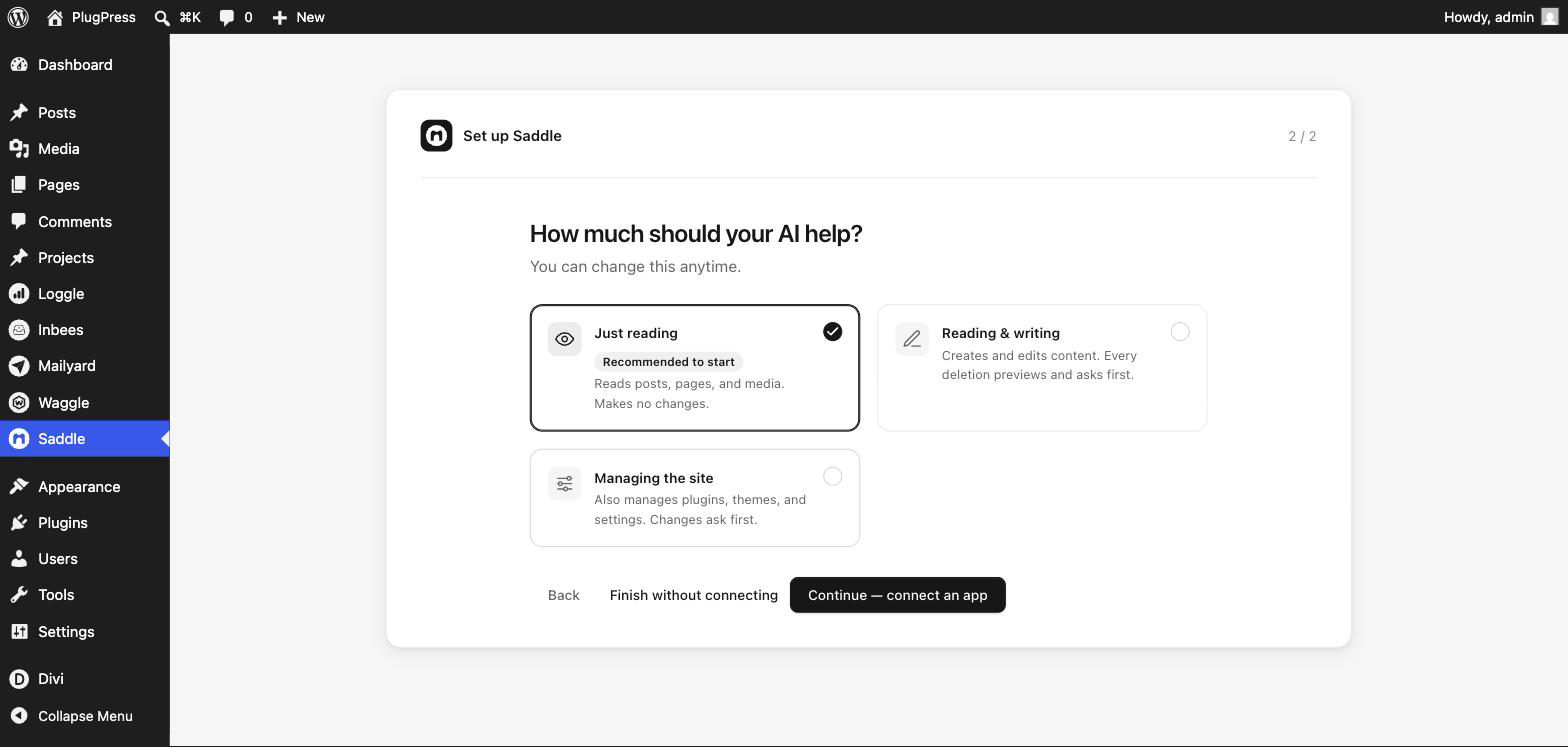
Then pick one of two endings:
- Continue — connect an app takes you straight into the connect wizard. Choose this if you have your AI app ready.
- Finish without connecting saves your choice and drops you on the Dashboard. You can connect whenever you like.
Where does Saddle live in wp-admin?
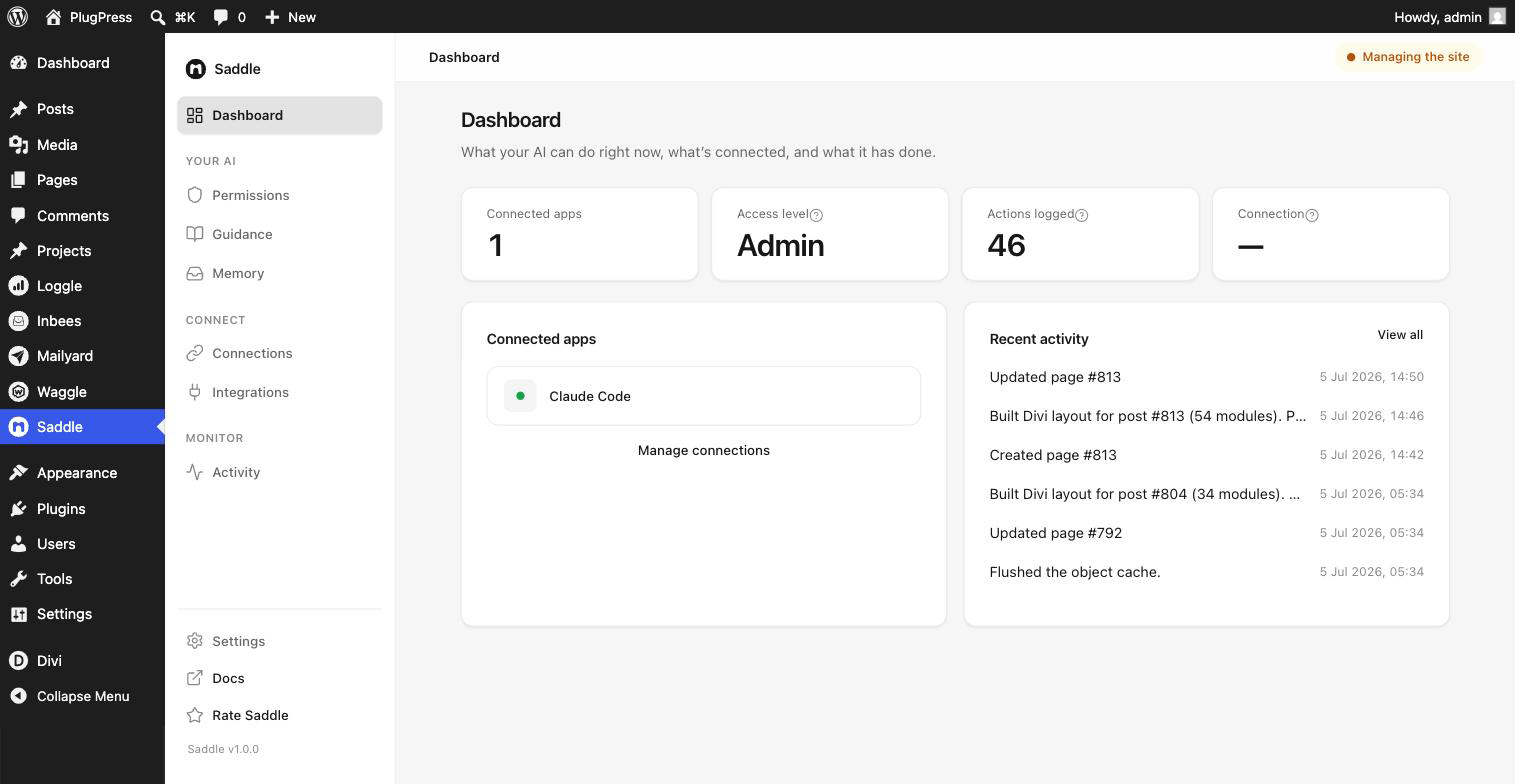
One menu item, with everything inside it. Click Saddle in the WordPress sidebar, then use Saddle’s own list on the left:
| Section | What it’s for |
|---|---|
| Dashboard | What your AI can do right now, what’s connected, and what it has done |
| Permissions | The access level, and a switch for every individual tool |
| Instructions | Standing instructions for your AI, and installable Skills |
| Memory | Facts about your site your AI should carry between sessions |
| Apps | Connect an app, rotate a key, disconnect, check connection health |
| Integrations | Extra tools from other plugins, and the Unsplash key |
| Activity | Every change made through Saddle, and every attempt that was blocked |
| Settings | The master AI access switch, and sign-in for ChatGPT |
How do I connect an AI app?
- Go to Saddle → Apps and click Connect an app.
- Pick your app. Saddle creates a sign-in key just for it and builds the exact setup that app needs — your site address and key already filled in.
- Click Copy setup and paste it where your app wants it.
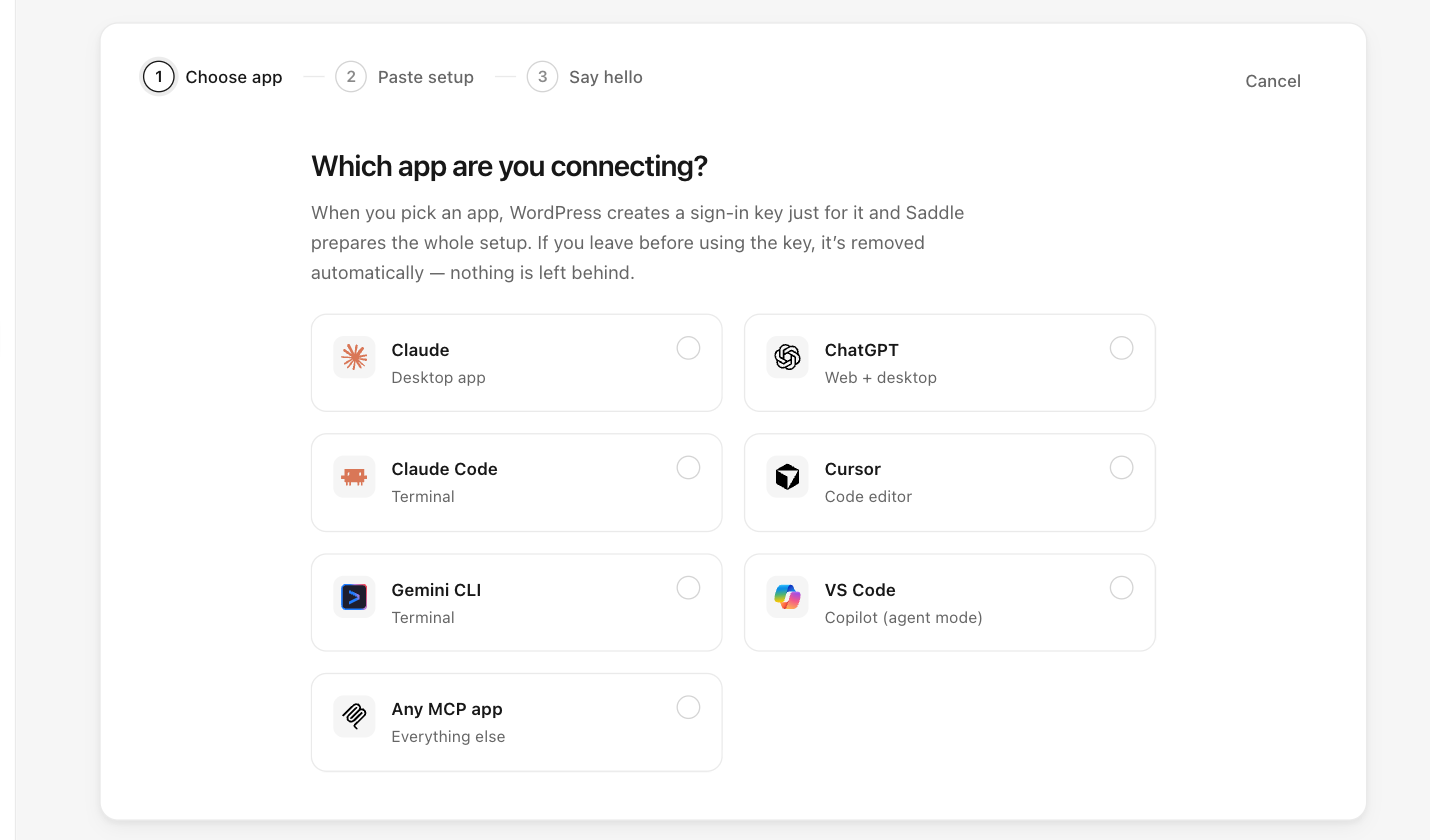
Two things worth knowing before you start:
- The key is shown only once. Saddle keeps its name and last four characters — never the key itself. If you lose it, use Rotate key on the app’s row to issue a fresh one.
- Don’t close the wizard before copying. Backing out revokes the key it just created, so you’d need to start again.
Treat the key like a password: anyone holding it can use the connection at whatever access level your site allows.
Step-by-step for your app
Every app’s exact setup lives on one page — Set up Saddle MCP. Jump straight to yours:
| App | Setup |
|---|---|
| Claude Code | One terminal command |
| Claude | One config block (needs Node.js) |
| ChatGPT | OAuth sign-in — no key to paste |
| Codex | A pasted key in ~/.codex/config.toml |
| Cursor | MCP settings or .cursor/mcp.json |
| VS Code | Copilot agent mode via .vscode/mcp.json |
| Gemini CLI | One terminal command |
| Any other MCP app | The standard setup |
How do I know the connection works?
Ask your assistant something simple:
What can you see on my WordPress site?It should report your site name, WordPress version, and content counts. The app also appears in Saddle → Apps the moment its first call arrives.
If nothing happens, open Saddle → Apps → Connection details & health and click Test the endpoint. That runs a real call against your own site and tells you how many tools answered — which separates “the app is misconfigured” from “the site isn’t reachable”.
What should I set up next?
- Raise the access level when you want the AI to actually change things — it starts read-only.
- Read how deletions work so the confirmation step doesn’t surprise you.
- Add standing instructions under Instructions — things like “always save new posts as drafts for me to review”.
- Troubleshooting if a step failed. The two most common connection errors both have quick fixes.
FAQ
Do I need an API key or an AI subscription for Saddle itself?
No. Saddle doesn’t call an AI provider — it’s the other end of the connection. You use whatever AI app you already have, and it talks to your site.
Can I connect more than one app?
Yes, as many as you like. Each gets its own key, and you can rotate or disconnect one without disturbing the others.
Where do the keys actually live?
They’re standard WordPress Application Passwords on your own user account. You’ll also see them under Users → Profile → Application Passwords, and revoking from either place works.
Does my site data get sent to PlugPress?
No. Saddle runs entirely inside your WordPress install — there is no relay or proxy in between, and no PlugPress server ever sees your content or your AI’s traffic.
What if my site isn’t on HTTPS?
WordPress disables Application Passwords on plain HTTP, so no app can connect. Get a certificate first — most hosts issue one free.