 PlugPress
How to Run a Site Audit in Waggle and Fix What It Finds
The Waggle audit checks ten things about your site, scores them out of 100, and hands
you a ranked worklist — and it never changes anything without asking. Every finding
opens a drawer that explains the problem in plain words and shows you exactly what would
change. You press Approve, or you don't.
The audit runs locally and calls no AI provider, so it is free to run as often as you
like, on any site, including one with no API key configured.
How do I run it?
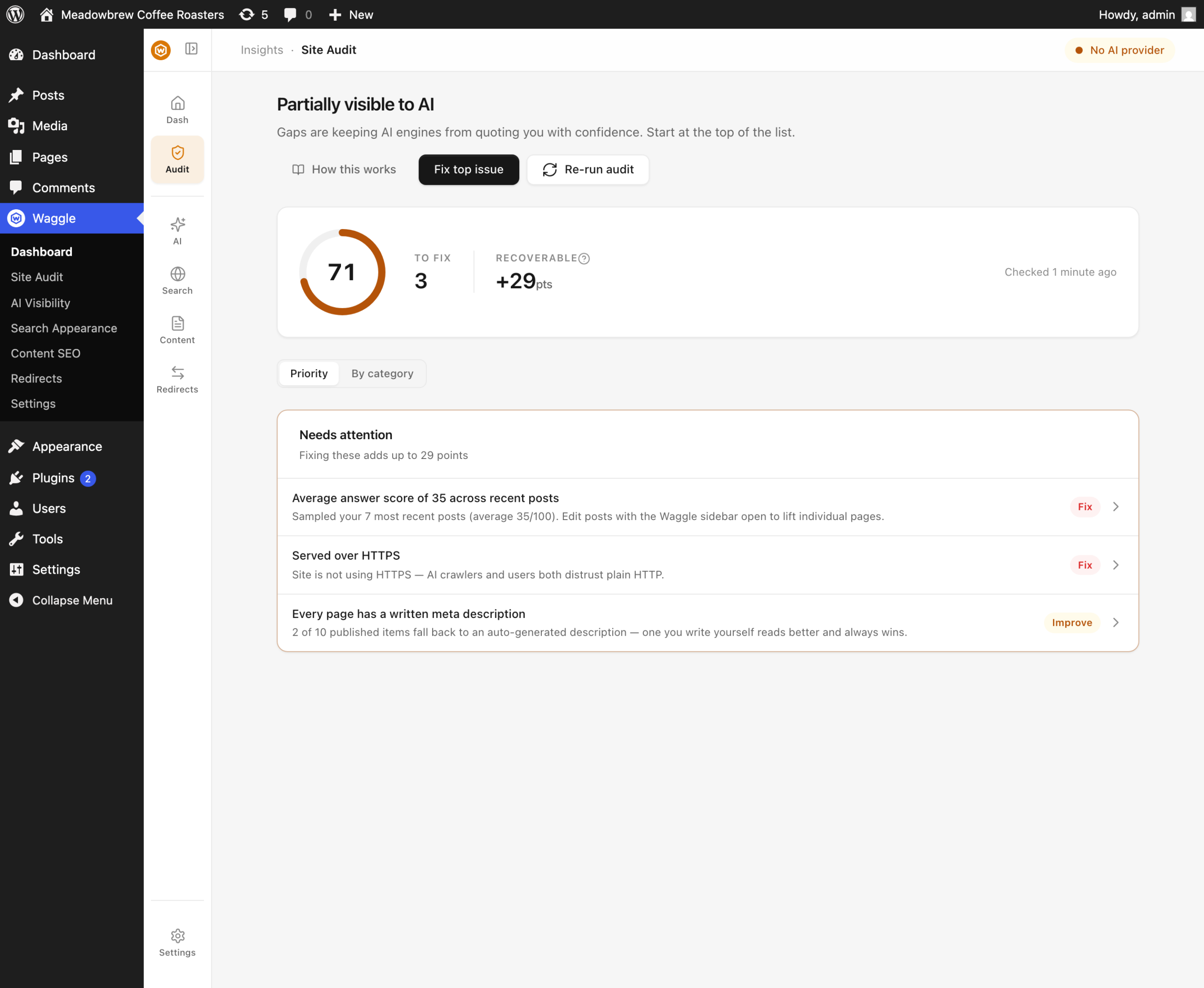
Open Waggle → Site Audit and press Run audit. A full run rebuilds the content index
and recomputes every check, which takes a few seconds on a small site and longer on one
with thousands of posts.
Results are cached for 15 minutes so that browsing wp-admin doesn't trigger a recompute on
every page load. Press the button again whenever you want fresh numbers.
By default the audit also runs itself weekly — adjustable under
Settings → Notifications, where you can additionally enable a digest email that
summarises the score alongside bot traffic, brand mention results and your 404s.
Priority or By-category — which view should I use?
The Site Audit screen offers two ways to look at the same findings.
Priority is a flat list of everything not passing, sorted by how many points you'd
recover. It tells you what to do next. Use it when you want to work.
By-category groups findings under the four questions the audit asks — Reachable,
Understood, Structured, Content quality. A group where everything passes collapses to a
single "all clear" line, so a healthy site is quiet. Use it when you want to understand
your site's shape rather than grind a list.
Neither view hides anything; they're the same data ordered differently.
What do the badges mean?
Each finding carries one badge:
- Fix (red) — the check is failing outright and full points are unrecovered.
- Improve (amber) — partially passing. Some points are available.
- Ready / Good (green) — passing.
What happens when I click a finding?
A drawer opens. Nothing has been written at this point. The drawer explains what the
finding means and then does one of four things depending on the fix:
- Shows a preview you approve in place. The AI crawler-access fix renders the exact
robots.txt Waggle would serve, with your changes in it. You read the file, then press
Approve. This is the only kind that writes from inside the drawer. - Gives on-page guidance and a link to the editor. The content-quality finding can't
be fixed by a setting — it needs writing — so the drawer explains what raises a page's
answer score and sends you to the weakest page. - Deep-links a WordPress screen in a new tab. Some fixes aren't Waggle's to make. The
"Visible to search engines" finding opens Settings → Reading, because that
checkbox belongs to WordPress core. - Jumps to the Waggle screen that owns the setting — for example the sitemap finding
sends you to Search Appearance → Content types.
After fixing something in another screen or tab, come back and press Run audit to see
the score update.
What are the ten checks?
| Check | Points | What failing means |
|---|---|---|
| Average answer score | 30 | Your published content scores low on the per-page answer-score rubric |
| AI crawler access | 12 | One or more known AI crawlers is blocked in robots.txt |
| Visible to search engines | 10 | WordPress's "Discourage search engines" checkbox is on |
| Meta coverage | 10 | Published posts are missing SEO titles or descriptions |
| Served over HTTPS | 8 | The site URL is plain HTTP |
| No noindex on published posts | 8 | Published posts are set to noindex |
| XML sitemap | 8 | The sitemap isn't serving, or a static file is shadowing it |
| Schema markup | 8 | The Schema feature is switched off |
| llms.txt served | 6 | The llms.txt rewrite rule is missing |
| Broken-URL pressure | 0 | Informational — lots of traffic is hitting missing pages |
Full weight rationale is in
reading your Dashboard and readiness score.
Two findings worth extra explanation
"A static file is overriding your sitemap"
If a physical sitemap.xml exists in your web root, your server hands that file to
crawlers before WordPress ever runs — so Waggle's live sitemap never gets a chance. This
is usually a stale export left behind by an old SEO plugin.
Confirm it, then delete the file over FTP or your host's file manager:
curl -sI https://example.com/sitemap.xml | grep -i "last-modified|content-type"
A dynamic sitemap has a charset in its content type and no fixed last-modified. A
static file has the reverse.
"Broken URLs are under control" (or aren't)
This one never moves your score. It exists because 404s waste crawl budget — every request
a crawler spends on a missing page is one it doesn't spend on a real one — but penalising
a score for it would be arbitrary. The drawer links to the 404 log so you can turn the
worst offenders into redirects; see
fixing broken URLs with redirects and the 404 log.
Does the audit ever change my site by itself?
No. The only write the audit can perform is the robots.txt preview described above, and
only after you press Approve inside the drawer. Every other fix routes you to the screen
that owns the setting.
Scheduled audit runs recompute the score and record history. They never apply fixes.
FAQ
Why did my score change without me doing anything?
Two of the checks read live conditions rather than settings — the average answer score
moves as you publish or edit content, and broken-URL pressure reflects recent traffic.
Publishing a thin page can lower your score.
Does running the audit cost anything?
No. It makes no AI provider calls at all. It reads your database, settings and rewrite
rules.
The audit says llms.txt is missing but I can see it in my browser
Check whether a physical llms.txt file exists in your web root — like the sitemap case
above, a real file on disk is served ahead of Waggle's dynamic route, and it will be
frozen at whatever it said the day it was created. See
LLMs.txt, Markdown & AI bot tracking.
Can an AI agent run the audit for me?
Yes. The waggle/get-site-ai-readiness ability returns the whole audit — score, groups
and every check — to any connected MCP client, and it is read-only.
How do I see what changed since last time?
The Dashboard shows a trend sparkline once you have at least two recorded runs, and the
digest email under Settings → Notifications reports the score on your chosen cadence.
Key sources
- Google Search Central — build and submit a sitemap: https://developers.google.com/search/docs/crawling-indexing/sitemaps/build-sitemap
- Google Search Central — robots.txt specifications: https://developers.google.com/search/docs/crawling-indexing/robots/robots_txt