 PlugPress
Connect Any MCP App to WordPress
The Saddle plugin runs a standard Model Context Protocol (MCP) server inside your WordPress site — so any AI app that supports remote MCP servers can connect, not just the ones listed in the wizard. If your app has an “Add MCP server” option, this guide is for it.
What do I need before connecting?
- A WordPress site with the Saddle plugin installed and activated.
- An AI app that supports remote MCP servers over HTTP with custom headers.
How do I connect an MCP app to my WordPress site?
Step 1: Open the connect wizard in Saddle
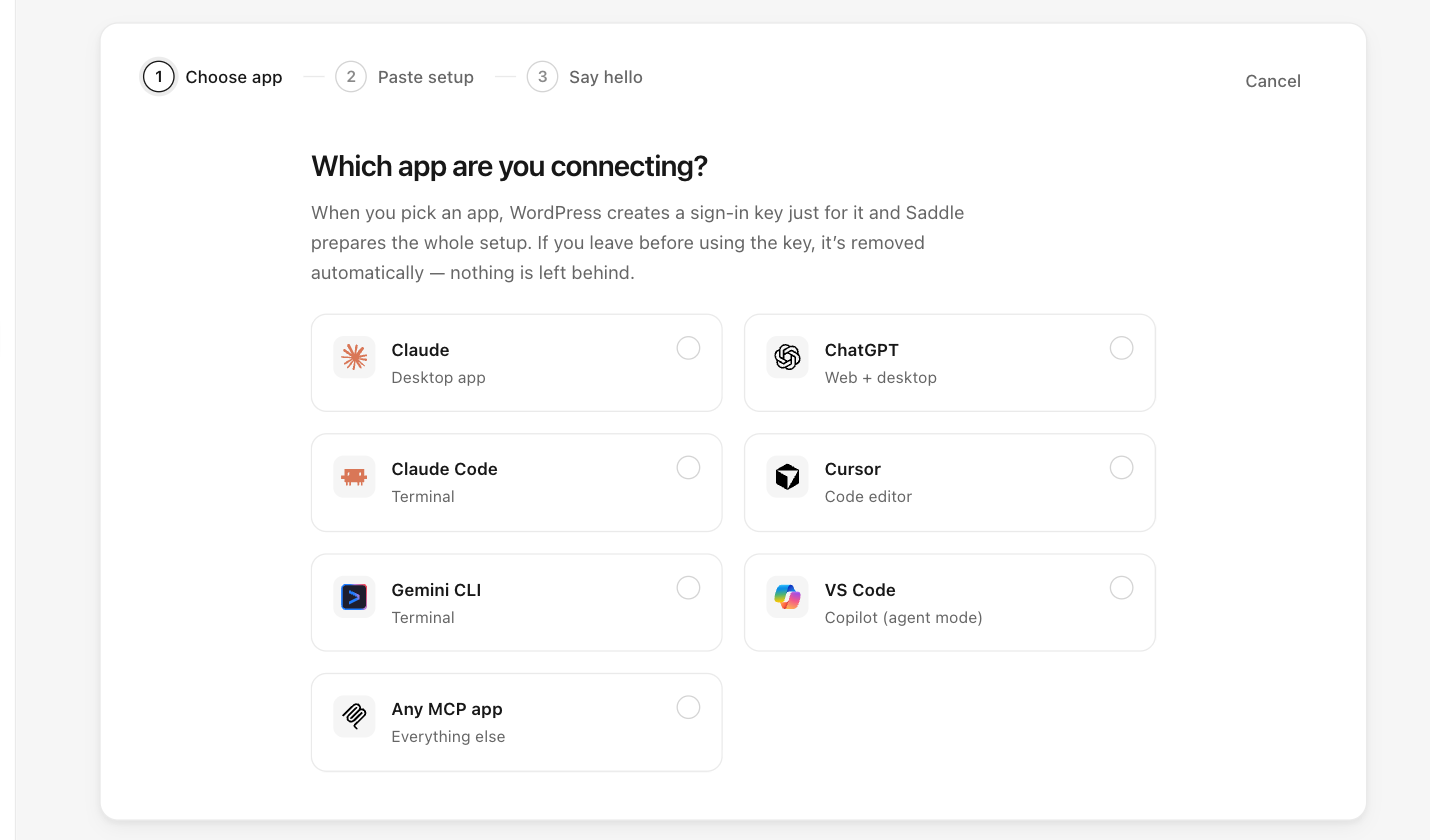
In your WordPress dashboard, go to Saddle → Connections, click Connect an app, and choose Any MCP app.
Step 2: Copy the generated config
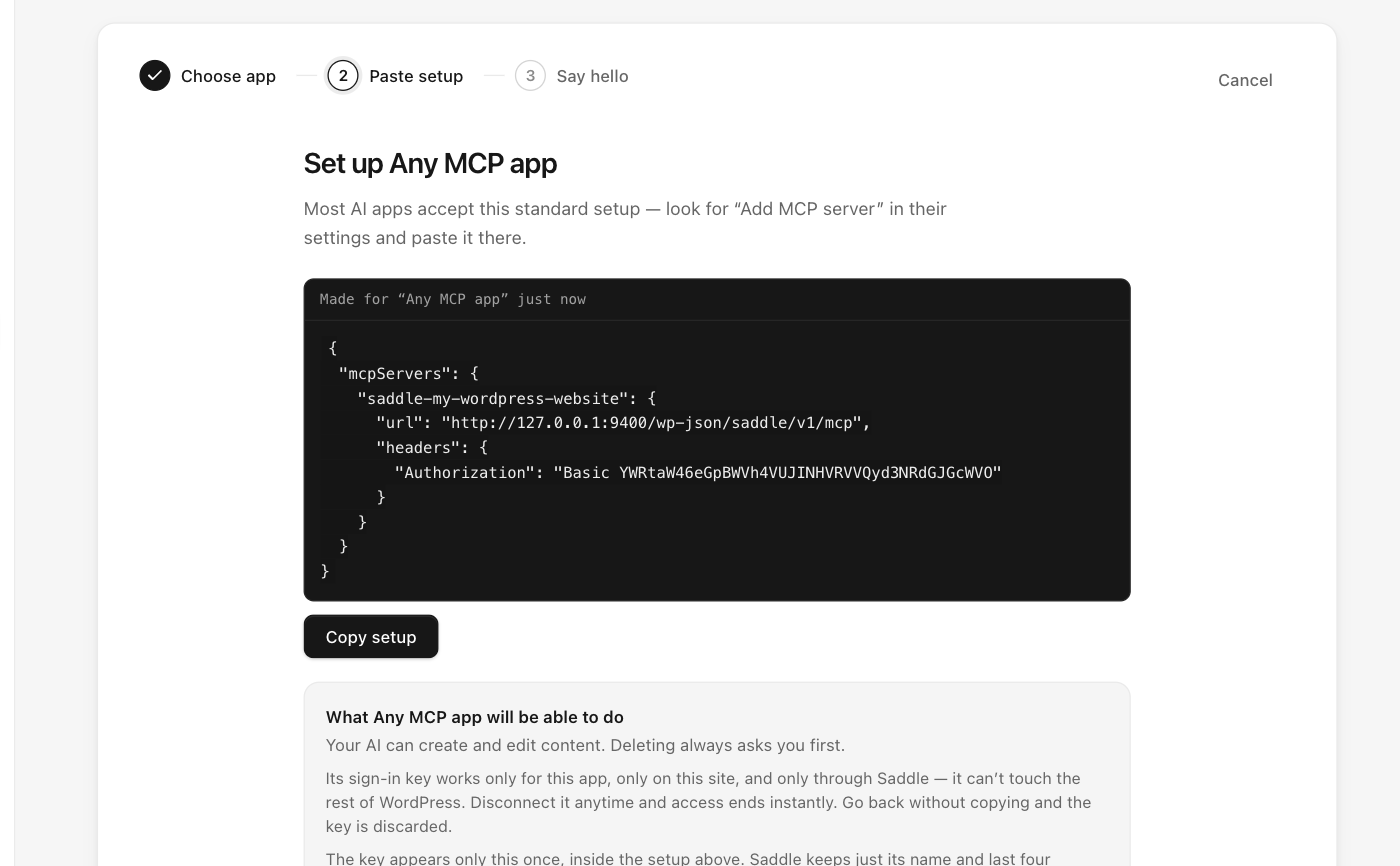
It looks like this (yours contains your real site address and key):
{
  "mcpServers": {
    "saddle-your-site": {
      "url": "https://your-site.com/wp-json/saddle/v1/mcp",
      "headers": {
        "Authorization": "Basic PASTE-YOUR-KEY-HERE"
      }
    }
  }
}
If your app asks for the pieces separately, the three facts it needs are:
- Server URL:
https://your-site.com/wp-json/saddle/v1/mcp - Transport: HTTP (streamable)
- Header:
Authorization: Basicfollowed by the key from the wizard
Step 3: Add it in your app
Look for “Add MCP server” (or similar) in your app’s settings and paste the config or the three facts above. Apps that only support OAuth instead of headers can use Saddle’s built-in sign-in — see Connect ChatGPT to WordPress for that flow.
How do I know the connection works?
Ask your app:
What can you see on my WordPress site?It should report your site name, WordPress version, and content counts, and the connection shows up in Saddle → Connections.
What can a connected app do on my WordPress site?
Only what you allow on the Permissions screen — sites start read-only, and deletions always require a preview-and-confirm approval.
Something not working?
See Troubleshooting and FAQ. If your app can’t send custom headers at all, use the OAuth path instead — it exists for exactly that case.