 PlugPress
Permissions and Access Levels
Saddle never gives an AI app blanket admin rights. What a connected assistant can do is decided by a handful of controls, all of them yours, all of them changeable at any time without reconnecting anything. If any one of them says no, the request is refused and nothing happens.
New sites start at the most restrictive setting — Just reading — and stay there until you decide otherwise. Power is something you turn on, never something you have to turn off.
What are the layers of control?
| Layer | Where | What it decides |
|---|---|---|
| AI access | Saddle → Settings | The master switch. Off means every request from every app is refused. |
| Access level | Saddle → Permissions | How much your AI can do overall — one of three levels. This is the ceiling for the whole site. |
| Per-tool switches | Saddle → Permissions | Any individual tool can be turned off on its own. |
| The connection’s own level | Saddle → Apps | Apps that sign in themselves (ChatGPT) each carry their own level, which can be lower than the site’s. |
What are the three access levels?
Pick one on Saddle → Permissions. It sets the most any app is allowed to do on this site.
| Level | What it allows | Good for |
|---|---|---|
| Just reading the default |
Reads posts, pages, and media. Makes no changes at all. | Getting comfortable. Asking questions about your own site. |
| Reading & writing | Creates and edits content, uploads media, builds page layouts. Every deletion previews and asks first. | Day-to-day content work — the level most people settle on. |
| Managing the site | Also manages plugins, themes, and site settings. These changes ask first too. | Site maintenance, with an assistant you already trust. |
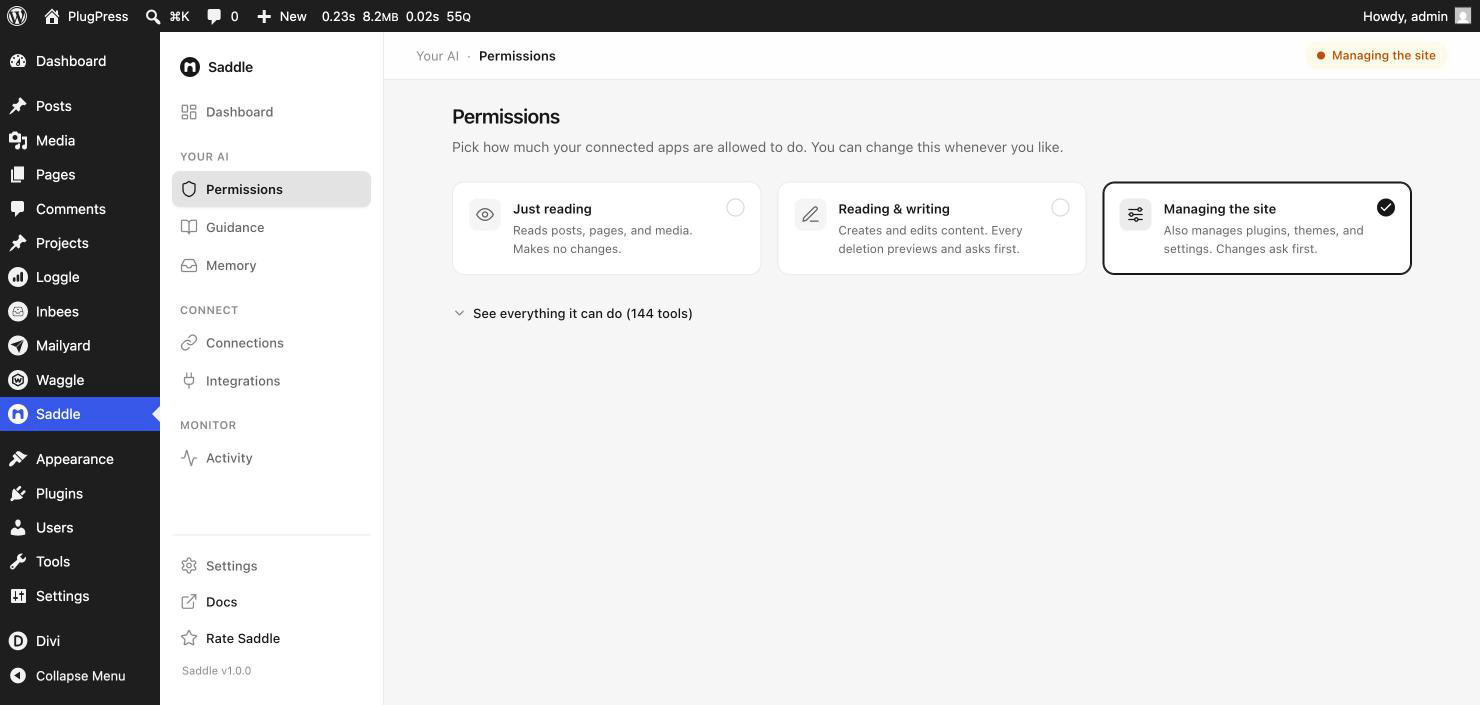
Each level contains the one before it, so raising the level never takes anything away. Lowering it takes effect on the very next request — there is nothing to re-issue or reconnect.
Can I turn off individual tools?
Yes. Expand See everything it can do on the Permissions screen and you get every tool your site currently offers, sorted into three lanes:
- Read — everything that only looks at your site.
- Create & edit — everything that writes.
- Delete — everything destructive. These carry an asks first badge, because they also go through the approval gate.
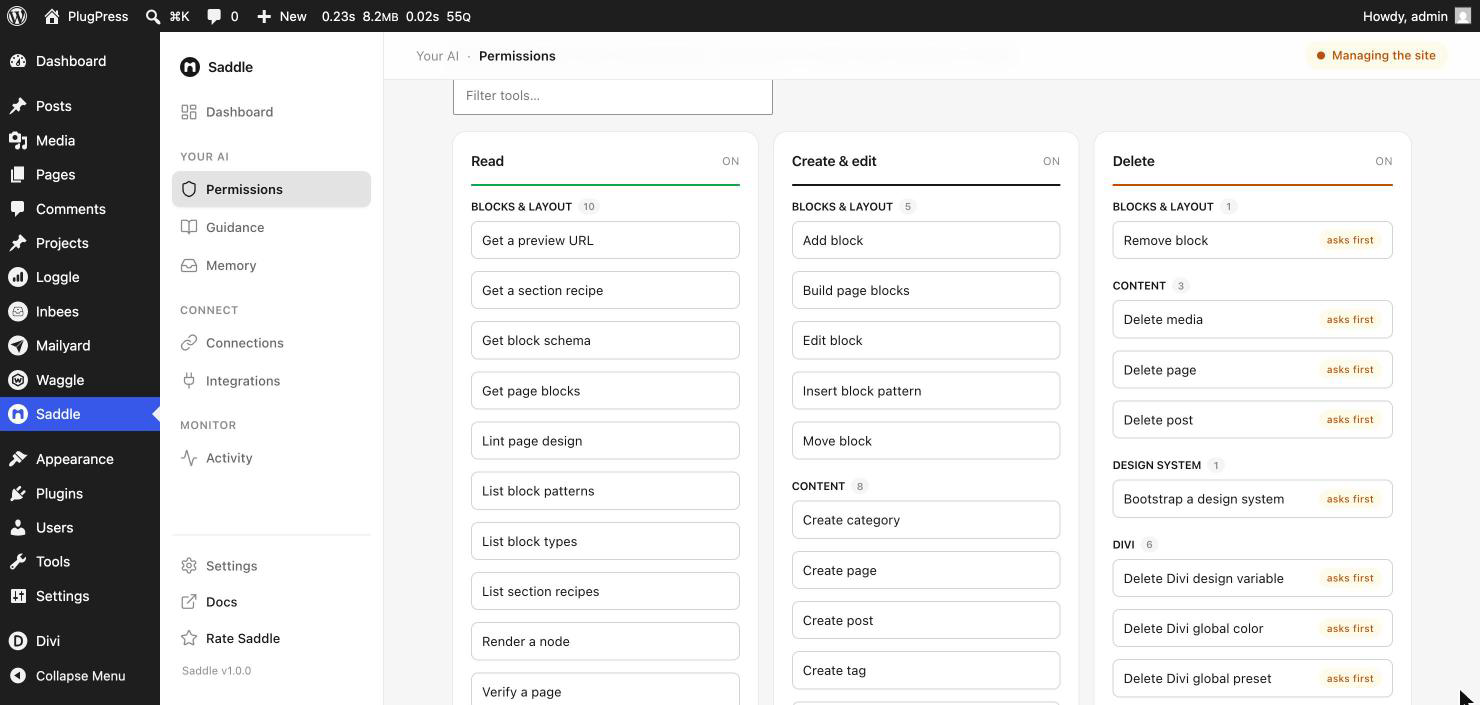
This is how you make exceptions. Want an assistant that drafts posts but must never touch a page? Leave the level at Reading & writing and switch off the page tools. Want it to write but never delete? Turn the whole Delete lane off.
Do permissions apply per connection?
Mostly the controls are site-wide: they apply to whatever connects, and there is no side door around them. But there is one important extra, and it catches people out.
Apps that sign in themselves carry their own access level. ChatGPT is the one that works this way. When you approve it on the consent screen you choose how much it may do, and that choice is stored on the connection itself. It can be lower than your site’s level, never higher.
So an app approved for reading stays read-only even on a site set to Managing the site — and this is the usual reason someone raises the site level, sees nothing change, and assumes it’s broken. Raising the site’s level lifts the ceiling; it does not lift an existing connection on its own.
To change it: go to Saddle → Apps, find the app under Signed in themselves, and pick a new level next to it. It applies immediately — no disconnecting, no approving again.
One last step people forget: refresh the app afterwards. AI apps read the list of available tools once and remember it, so a change on your site stays invisible until the app looks again. In ChatGPT, turn the connector off and on, or start a new chat.
Apps that use a pasted key instead — Claude, Cursor, VS Code, Codex — have no level of their own. They simply follow the site’s level.
How do I pause everything at once?
The AI access card at the top of Saddle → Settings is the master switch. Turn it off and every tool call from every connected app is refused until you turn it back on. Nothing is disconnected and nothing is forgotten — your apps, keys, and settings are all exactly as you left them.
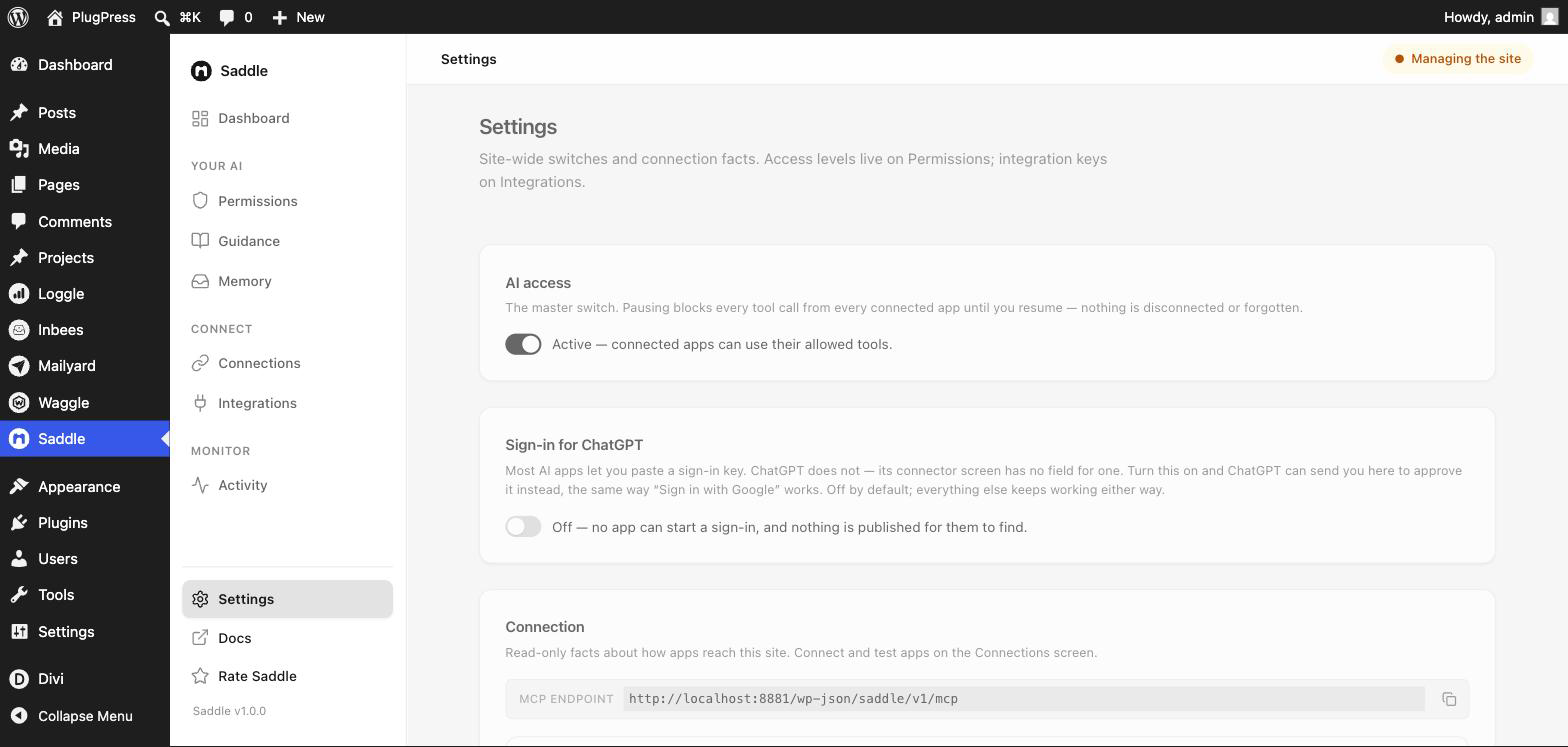
Use it during a launch, an audit, a migration, or any time you want the site frozen for a while.
What happens when the AI tries something that isn’t allowed?
The call is refused with a permission error and nothing partial happens — a refused call makes no changes whatsoever. A well-behaved assistant will tell you it was blocked rather than silently retrying.
To allow it, check the controls in order: AI access in Settings, then the site’s access level, then that specific tool’s switch, and finally — for ChatGPT — the connection’s own level in Apps. Blocked attempts are recorded in Saddle → Activity, so you can see exactly what an assistant tried to do and didn’t get to.
A quick way to tell which one is biting: ask the assistant how many tools it has. A tool that is switched off, or above the level in force, isn’t refused when called — it is never offered in the first place, so the count drops.
Is there a record of what AI apps changed?
Yes — Saddle → Activity keeps a log of every change made through Saddle, newest first, and of every attempt that was blocked. Reading is never logged; only changes are. Connected assistants can also read this log as context, so a new session knows what already happened on the site before it makes fresh changes.
Recommended setup
- Stay on Just reading for the first day. Ask your assistant about your site, see what it finds, get a feel for it.
- Move to Reading & writing when you want real work done — this is where most sites live permanently.
- Only go to Managing the site when you actually need it, and consider dropping back afterwards.
- Create one connection per app or per person, named clearly, so you can cut off exactly one when you need to.
- Check the Apps screen after raising the site level, in case an app that signs in itself is still sitting lower.
FAQ
Does changing the level require reconnecting my apps?
No. Changes take effect on the next request and nothing needs re-pasting. You may need to refresh the app so it re-reads which tools are available, but that’s not the same as reconnecting.
I raised the site level and my AI still can’t change anything. Why?
Its connection almost certainly has a lower level of its own. Open Saddle → Apps and raise it there too, then refresh the app. See “Do permissions apply per connection?” above.
If I set “Managing the site”, can an AI delete my whole site?
No. Destructive actions never happen in one step at any level — they preview and wait for confirmation. And Saddle has no tool for running arbitrary code, PHP, or WP-CLI commands, at any level, by design.
Why is the default read-only rather than something more useful?
Because a safety default that has to be turned off isn’t a safety default. You should be able to install Saddle, connect an app, and know for certain that nothing on your site can change until you say so.
Do plugin tools follow the same rules?
Yes. Tools that come from other plugins through Saddle → Integrations run under the same access level, the same per-tool switches, the same approval gate, and the same log as everything else.
Can an AI change these settings itself?
No. Permissions, the master switch, and connections are owner-only — they live behind the WordPress dashboard and are not exposed as tools.