 PlugPress
How to Fix Broken Links with Waggle: Redirects and the 404 Log
Waggle logs every URL that returns a 404 and lets you turn any of them into a redirect
in one click. The 404 log under Redirects → 404 log shows what people and crawlers
are actually failing to find, ranked by how often they hit it, and each row has a button
that opens a pre-filled redirect form. You never have to guess which broken URLs matter.
Redirect rules live under Redirects → Rules: exact-match 301, 302 and 410 responses
with a hit counter on each, so you can see which rules are earning their keep.
Why do broken URLs matter for AI visibility?
Every request a crawler spends on a missing page is one it doesn't spend on a real one.
That's true of Googlebot and equally true of GPTBot, ClaudeBot and PerplexityBot — and AI
crawlers are typically less patient about re-crawling than search engines are.
Waggle's site audit surfaces this as broken-URL pressure, an informational finding
worth zero points. It's deliberately unscored — 404s waste crawl budget and deserve
visibility, but attaching a score to them would be arbitrary. See
running the site audit.
Which redirect type should I use?
| Type | Meaning | Use it when |
|---|---|---|
| 301 | Moved permanently | The content lives at a new URL for good. This is the default and passes ranking signals to the target. |
| 302 | Found / temporary | The move is genuinely temporary — a seasonal page, a campaign. Search engines keep the original indexed. |
| 410 | Gone | The content is deleted and isn't coming back. Tells crawlers to stop asking, which is cleaner than a 404. |
Use 301 unless you have a specific reason not to. Use 410 for content you've
genuinely retired — it stops the URL reappearing in your 404 log forever.
Waggle's own hint on the 410 option makes the distinction that matters:
Gone tells crawlers this page was removed on purpose.
That intent is the whole point — a 404 says "not found", which crawlers keep retrying; a
410 says "deliberately removed", which they eventually stop asking about.
How do I create a redirect?
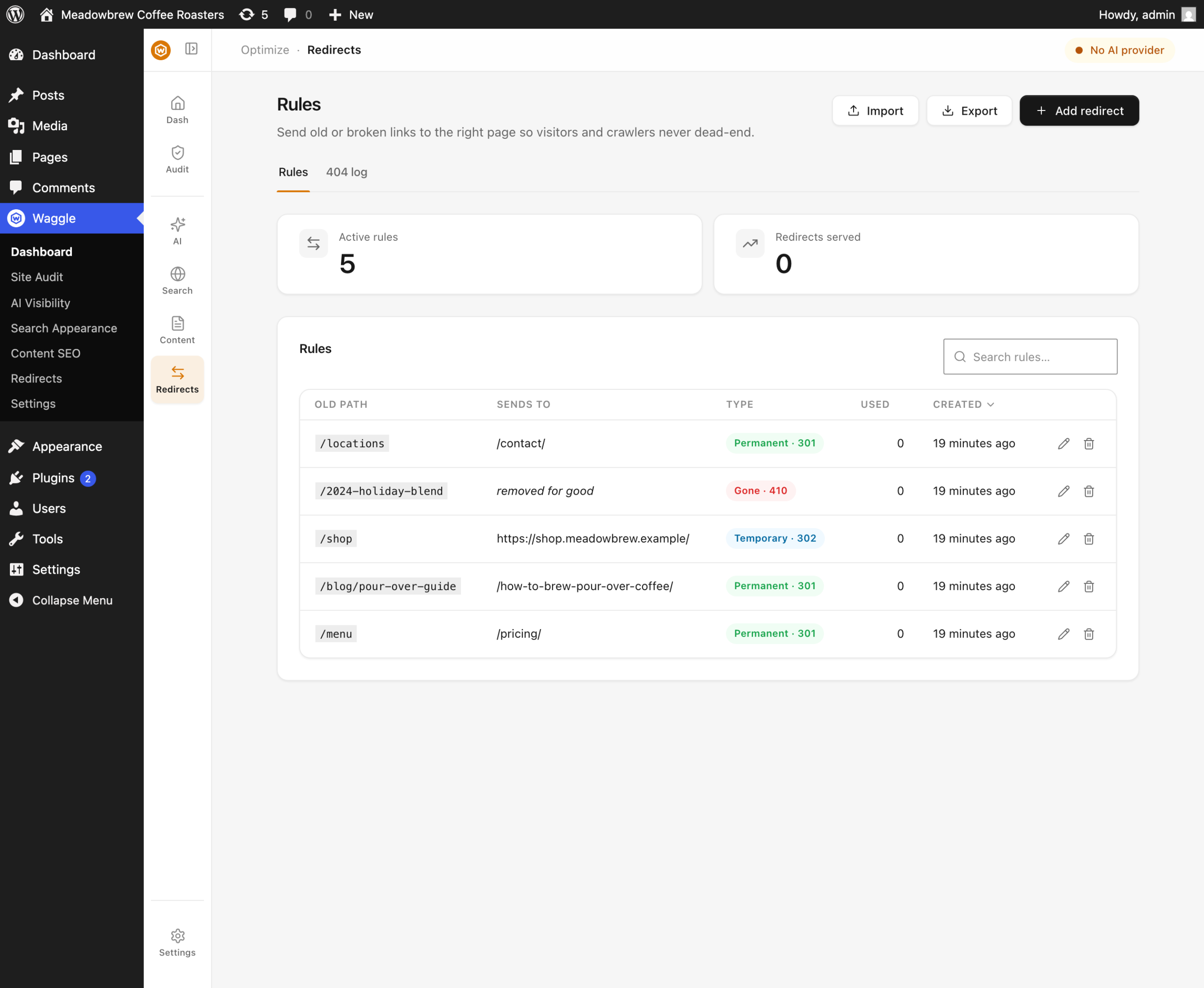
- Go to Redirects → Rules and press Add redirect.
- Enter the source path — the broken URL, as a path like
/old-page/. - Enter the target. The field searches your posts, pages and custom post types as you
type, so you can pick the destination instead of pasting a URL. External URLs are
accepted too. - Choose the type — 301, 302 or 410. A 410 needs no target.
- Save. The rule takes effect immediately.
Matching is exact, not pattern-based. /old-page/ and /old-page are different
strings, so create the form your visitors and crawlers are actually requesting — the 404
log shows you which.
How do I fix a 404 from the log?
This is the faster path, because the log already knows the source URL.
- Open Redirects → 404 log. Rows are ranked by hit count.
- Find a path worth fixing. High counts on a recognisable old URL are the obvious wins.
- Press the redirect button on that row. The redirect form opens with the source
pre-filled. - Choose a target and save.
Once a path is covered, its row shows a Redirected badge, so you can tell at a glance
what's handled and what's still bleeding.
Not every 404 deserves a redirect. Random probes for /wp-login.php2 or vulnerability
scans are noise — ignore them. What matters is URLs that used to work: renamed posts,
changed permalink structures, deleted pages that still have inbound links.
Can I import my redirects from another plugin?
Yes. Redirects → Rules supports CSV import and export. The import is parsed in
your browser and shows a preview before anything is written, and you choose whether
existing rules are skipped or overwritten.
This is usually the fastest way to bring redirects across when migrating, since redirect
data isn't part of Waggle's SEO-meta import. See
moving to Waggle from another SEO plugin.
Export works the same way and is worth doing before any bulk change, as a backup.
Do redirects slow my site down?
Waggle checks its redirect table only on requests that would otherwise 404, so a normal
page load does no extra work. The table is indexed on the source path, so lookups stay
fast as the list grows.
FAQ
Does the 404 log slow down my site or fill my database?
The log is a dedicated table with its own pruning schedule, not post meta or options — so
it never autoloads and can't bloat the pages your visitors see. Entries are aggregated per
URL with a hit count rather than one row per request.
Why do I see robots.txt or favicon.ico in the 404 log?
Because they genuinely 404'd. They're rarely worth redirecting — they're requests for
files your site doesn't have. Ignore them, or create the file if you actually want one.
Can I use wildcards or regular expressions?
No. Matching is exact by design: exact matching is predictable, fast, and can't
accidentally capture URLs you didn't intend. For a large pattern-based migration, generate
the rules and import them as CSV.
Will a redirect pass my SEO ranking to the new page?
A 301 passes ranking signals to the target; a 302 deliberately does not, because it says
the move is temporary. That's the main practical reason to prefer 301 for real moves.
Do AI crawlers follow redirects?
Yes, the major ones follow standard HTTP redirects like any client. Fixing a 404 that
GPTBot or ClaudeBot keeps hitting genuinely recovers that page's chance of being read.
Can an agent create redirects for me?
Yes — waggle/list-404s, waggle/list-redirects and waggle/create-redirect are
available through the WordPress Abilities API. waggle/delete-redirect is marked
destructive, so a well-behaved client will confirm before calling it.
Key sources
- Google Search Central — redirects and Google Search: https://developers.google.com/search/docs/crawling-indexing/301-redirects
- MDN — HTTP response status codes (301, 302, 410): https://developer.mozilla.org/en-US/docs/Web/HTTP/Status