 PlugPress
Your Saddle Dashboard, Explained
The Saddle dashboard answers three questions: what can my AI do right now, what’s connected, and what has it done? Everything else is one click away from there.
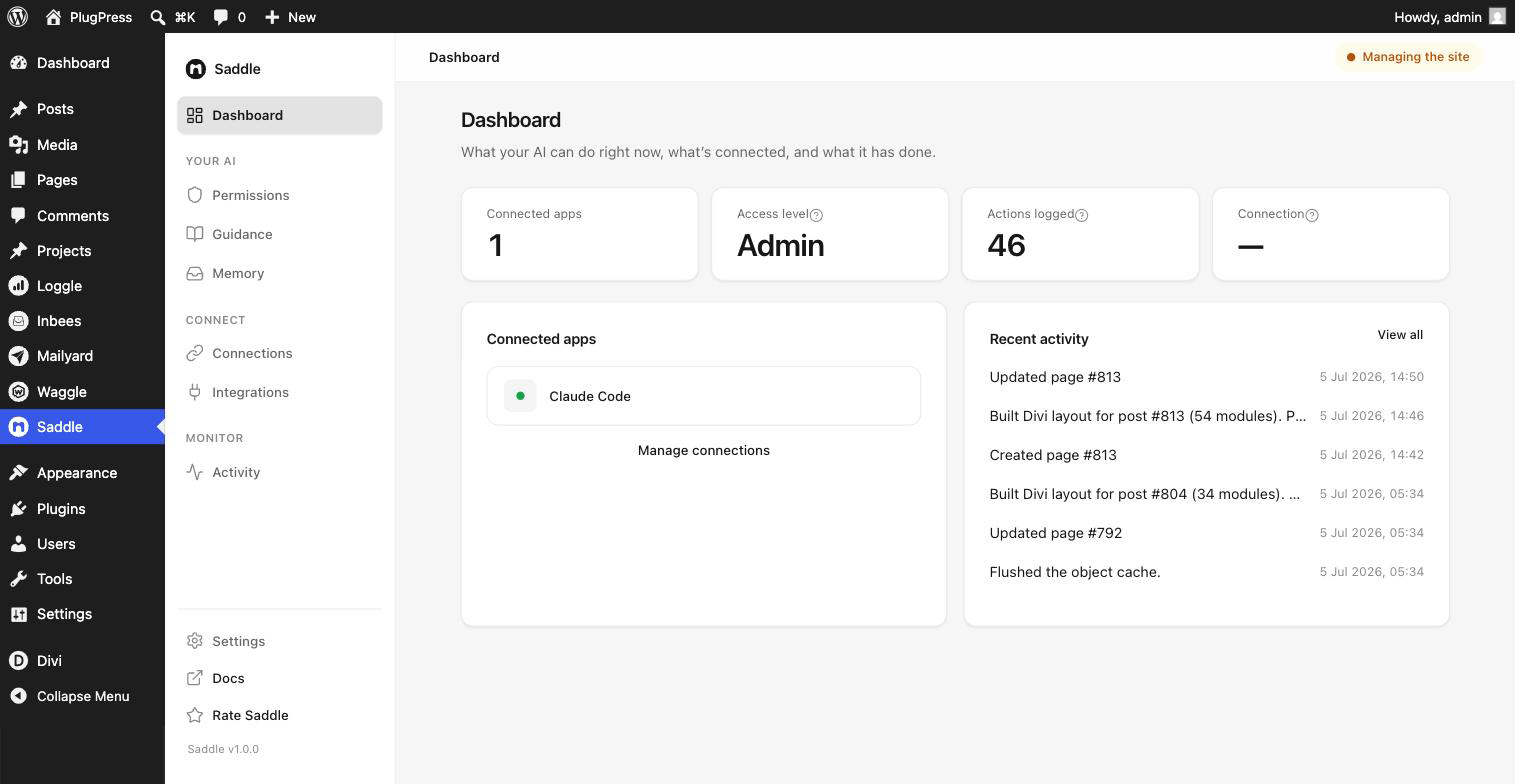
What do the four numbers mean?
| Tile | What it tells you | Worth checking when |
|---|---|---|
| Connected apps | How many AI apps currently have a working sign-in | It’s higher than you expected — disconnect what you don’t recognise |
| Access level | What your AI is allowed to do site-wide | Before giving an assistant a big job, and after finishing one |
| Actions logged | How many changes have been made through Saddle | It jumps unexpectedly |
| Connection | Whether your endpoint is reachable and healthy | An app suddenly can’t connect |
What is the pill in the top corner?
It shows your current access level on every Saddle screen — or the word Paused if the master switch is off. It’s a deliberate reminder: you should never have to wonder what an AI can currently do to your site.
Click it to jump straight to Settings, where the AI access switch lives.
What’s in the two cards?
- Connected apps — each app with a live/idle dot, and a link through to manage them.
- Recent activity — the last handful of changes, with View all for the full log. This is the one to glance at after letting an assistant work unattended.
Where does everything else live?
Saddle is one WordPress menu item with its own list of screens inside it, grouped by what they’re for:
| Group | Screens | What they’re for |
|---|---|---|
| Your AI | Permissions, Guidance, Memory | What it can do, how it should work, what it knows |
| Connect | Connections, Integrations | Which apps reach your site, and what extra tools exist |
| Monitor | Activity | What actually happened |
| Pinned at the bottom | Settings | The master switch and sign-in for ChatGPT |
Each screen has its own web address ending in a # fragment, so you can bookmark the one you use most.
What about the first time I open it?
Before any of this, a two-step setup runs — it introduces what Saddle does and asks how much your AI should help. It replaces the whole screen until you finish it, and it’s covered in Getting Started.
A sensible weekly habit
- Glance at Actions logged. Does the number roughly match what you asked for?
- Open Activity and skim the Blocked filter. Anything you can’t explain is worth a look.
- Check Connected apps — disconnect anything you’ve stopped using.
- Confirm the access level is still where you want it, especially if you raised it for a one-off job.
FAQ
The Connection tile shows a dash. Is that bad?
It means Saddle hasn’t verified your endpoint yet. Open Connections → Connection details & health and click Test the endpoint for a real answer.
Actions logged went up but I wasn’t working. Why?
Something with a valid key made changes. Open Activity to see exactly what and when, and if it wasn’t you, disconnect that app and rotate its key.
Can I see the dashboard without being an administrator?
No. All Saddle screens require administrator access.
Where’s the version number?
At the bottom of Saddle’s own menu, under the Settings and Docs links.